Micro Frontend Blog
Micro Front-end is often confused with microservices. In this post, we'll demystify what Micro Frontends are, how they differ from microservices, and why you might want to use them in your next project.
Micro Frontend
Micro Front-end is popular nowadays, often confused with microservices. In this post, we'll explain what Micro Frontends are, how they differ from microservices, and why you might want to use them in your next project.
What is a Microservice?
- Microservices are independent backend services.
- It has its own database, business logic and deployment.
- Frequently exchange information through APIs(REST, gRPC, etc.)Works best with large-scale backend systems.
What is Micro Frontend?
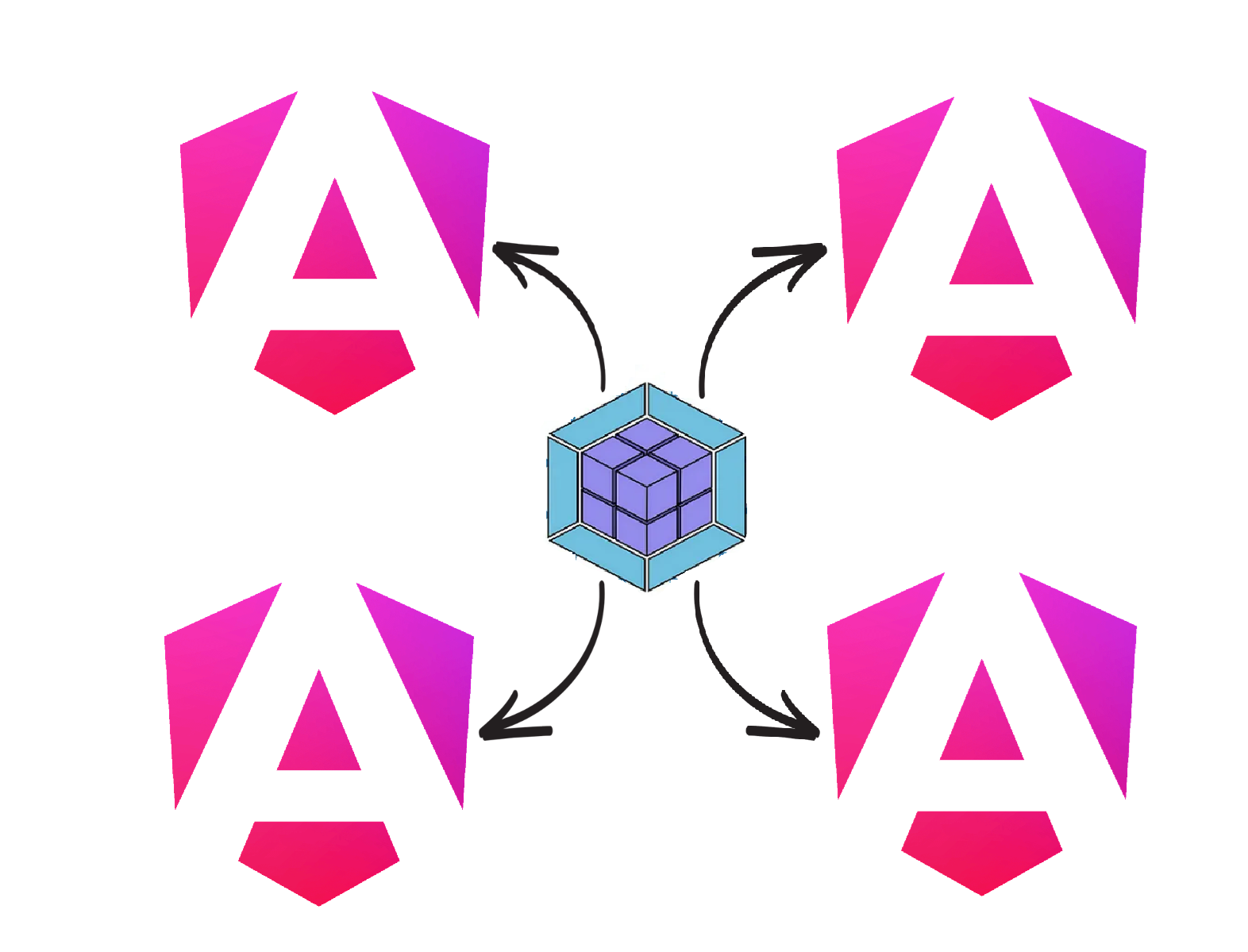
- It is a design approach where a frontend app divides a monolithic interface into a smaller one, which means MFE splits large-scale apps into smaller, independently deliverable and deployable apps.
- Micro Frontends also refer to the Module Federation.
- Micro Frontends bring the same advantages as microservices to the frontend of being disconnected.
- We can build and deploy micro frontend apps separately, but work together as one UI.
Microservices & Micro Frontends
| Aspect | Microservices | Micro Frontends |
| Domain | Backend | Frontend |
| Communication | API (REST, gRPC) | JavaScript, Web Components, iFrames, Module Federation |
| Team Independence | Yes | Yes |
| Deployment | Independent | Independent (but within a shell app) |
| Integration | API Gateway | Runtime integration (via Webpack 5, iFrames, etc.) |
| Sustainable | Yes | Yes |
| Maintainable | Yes | Yes |
Now let’s deep dive into code to create a micro frontend application using Angular.
So let’s start coding!👨🏻💻
We will mainly use these two packages.
We will create a module-based Angular application for that will use --standalone=false. However, we can create this with a standalone component also.
Use your terminal to hit the below commands.
| ng new shell-app --standalone=false |
Now, let’s create a new Angular app for the remote app.
| ng new remote-app--standalone=false |
Now, install module-federation package in both projects. Then select the webpack from the terminal.
It will create a new file named webpack.config.js that we will use later in this demo project.
| ng add @angular-architects/module-federation |
When you hit the above command, you will get some questions. Please add answers accordingly. You can take a reference from the following image.

The next step is to create a new module in the remote app that will be used in the main or shell application.
| ng g m modules/admins --routing |
Hit the below command to create a new component.
| ng g c modules/admins --standalone=false --module=admins |
Also, add the path of admin routes in app-routing file.
| const routes: Routes = [ { path: 'admins', loadChildren: () => import('./modules/admins/admins.module').then((m) => m.AdminsModule), }, ]; |
Now, change the configuration in the webpack.config.js file located at root level.
e.g: remote-app/webpack.config.js
| const { shareAll, withModuleFederationPlugin } = require('@angular-architects/module-federation/webpack'); module.exports = withModuleFederationPlugin({ name: 'remote-app', exposes: { './AdminsModule': './src/app/modules/admins/admins.module.ts', }, shared: { ...shareAll({ singleton: true, strictVersion: true, requiredVersion: 'auto' }), }, }); |
Module Federation allows you to load separately compiled and deployed code (like Angular modules) from another Angular application at runtime.
- withModuleFederationPlugin: The 'name' property is used as the unique name of your application (the remote app). It will be used by the host application to reference this app.
- exposes: This tells Webpack to expose the AdminsModule to other applications.
- shareAll: It is a utility function to automatically share all dependencies from package.json.
- singleton: true: Ensures only one instance of each shared lib exists (e.g., one Angular core).
- strictVersion: true: Ensures the remote and host use exactly the same versions.
- requiredVersion: 'auto': Automatically picks the version from package.json.
Our remote app is ready, Now in shell-app's root route file, we will add the path of remote-app's admin component.
| const routes: Routes = [ ...existing routes of Shell App { path: 'admins', loadChildren: () => import('remote-app/AdminsModule').then((m) => m.AdminsModule), } ]; @NgModule({ imports: [RouterModule.forRoot(routes)], exports: [RouterModule], }) export class AppRoutingModule {} |
If you find any error, please create a decl.d.ts file in srs/app path.
Add the below line in a new file.
| declare module 'remote-app/AdminsModule'; |
To check remote-app's path, we will add a router link in html.
| <a [routerLink]="['admins']">Remote Admin Page </a> <br> <a [routerLink]="['home']">Home Page</a> <router-outlet /> |
One last thing is to change the web.config.js file of the shell-app located at root level.
e.g: shell-app/webpack.config.js
| const { shareAll, withModuleFederationPlugin } = require('@angular-architects/module-federation/webpack'); module.exports = withModuleFederationPlugin({ remotes: { //your remote application name with its hosted route "remote-app": "http://localhost:4201/remoteEntry.js", }, shared: { ...shareAll({ singleton: true, strictVersion: true, requiredVersion: 'auto' }), }, }); |
Let’s understand the above code.
- remotes: This tells the host application that there is a remote application named remote-app.
- Load its module federation entry file from:
👉 http://localhost:4201/remoteEntry.js
- shared: This automatically shares all dependencies between host and remote.
- singleton: true: Ensures only one instance of each shared lib (e.g. @angular/core) is used between host & remotes.
- strictVersion: true: Both apps must use exactly the same version of shared libs.
- requiredVersion: 'auto': It reads the version from your package.json.
Security Concerns:
When your remote app is deployed on a real server (e.g.https://remote-app.com/remoteEntry.js), security becomes critical. Below are some ways to prevent our app from being compromised.
CORS (Cross-Origin Resource Sharing)
If your host app is on host.com and remote on remote.com, you must configure CORS headers on the remote app’s server:
- Access-Control-Allow-Origin: https://host.com
- Without this, the browser will block the remote module loading.
Code Injection / Integrity
You're loading JavaScript code at runtime, so ensure:
- Only trusted apps are exposed
- The remote entry isn’t tampered with (e.g. use Subresource Integrity (SRI) or hash checks if possible)
Authentication/Authorization
You may want to:
- Restrict who can load the remote modules
- Add auth checks before exposing sensitive modules.
Now let's test our demo app by running both applications.
Hit this command for both applications. Please note that your remote-app should run on port http://localhost:4201 as we mention this path in web.config.js of shell-app.
| npm start |
Here is the output. You can find the <app-admin> component in the shell-app’s console.

One key point you should know before starting with micro frontend apps.
Do not create micro frontend apps if your remote apps are in different versions. means, a small chunk of the project should be in the same version, then only module federation will work. We can create a micro frontend app if our project is too large and has separate, independent modules. Hope this is helpful to you.
You can take a look at the code through the GitHub link below.
micro-frontend-angular-app
Thanks for reading🙂!
Ready to Transform Your Warehouse?
Get a free, detailed estimate for your custom WMS solution