
WMS Integration With ERP: Methods, Architecture & Common Pitfalls
Learn how WMS integration with ERP works, with 7 methods, architecture decisions, data flows, an 8-step roadmap, costs, timelines, and common pitfalls to avoid.
On this page67 sections
A picker scans the last carton of a rush order, the truck leaves on time, and the warehouse team calls it a good day. Two hours later, the ERP still shows that inventory on the shelf, and sales promises the same stock to another customer.
That gap between what happens in the warehouse and what the business sees in its ERP is exactly what WMS integration with ERP is designed to close. Whether you use a packaged WMS or a custom warehouse management system, both systems need to exchange accurate inventory, order, shipment, and master data.
The challenge is rarely just the code. Teams need to decide which system owns each record, how quickly data should sync, and what happens when an integration fails. Get those decisions wrong, and oversells, invoice corrections, and unreliable inventory data can follow.
In this guide, you'll learn:
- What WMS integration with ERP means
- 8 benefits of WMS integration with ERP
- 7 WMS integration methods and where each fits
- The architecture decisions that keep data reliable
- An 8-step implementation roadmap and 10 common pitfalls
By the end, you'll understand the key integration choices, what to settle before development starts, and how to prepare for a smoother go-live.
Key Takeaways: What a Reliable WMS Integration With ERP Needs
- WMS integration with ERP connects warehouse operations with business systems so orders, inventory, shipments, and financial data stay aligned.
- Define ownership first: every field has one owner, with the WMS owning physical stock and the ERP owning costs, valuation, and financial records.
- Choose the right sync method for each flow, using real time for orders and shipments and scheduled batches for slow-moving reference data.
- Clean your data before go-live, because integration does not fix duplicate SKUs, mismatched units, or ghost locations.
- Plan for failures before going live, with queues, retries, a visible error queue, and daily reconciliation.
What Is WMS Integration With ERP?
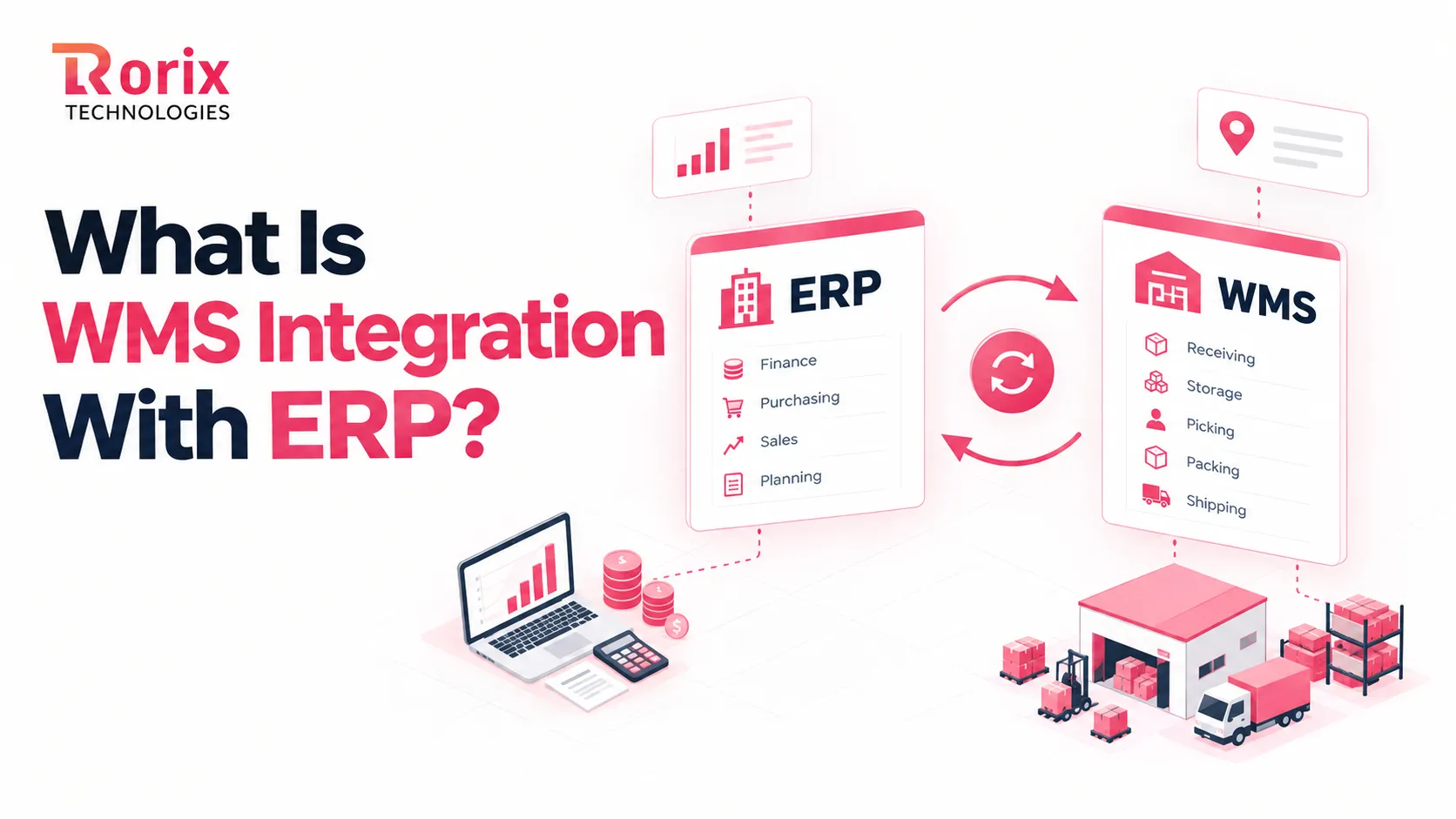
WMS integration with ERP is the two-way exchange of data between your warehouse management system and enterprise resource planning software. The ERP sends orders and business data, while the WMS reports what happens on the warehouse floor.
Think of them as two specialists. The ERP manages finance, purchasing, pricing, sales, invoicing, and planning. The WMS manages receiving, putaway, storage, picking, packing, and shipping.
For example, the ERP may know you own 1,200 cases of a SKU. The WMS knows where those cases are stored, which lot expires first, and what needs to be picked next.
Good warehouse management system integration keeps both views aligned. A warehouse scan can update inventory automatically, while a new ERP order can reach the floor without manual re-entry.
ERP vs. WMS: How the Work Is Split
| Area | ERP | WMS |
|---|---|---|
| Core job | Finance, purchasing, sales, and planning | Receiving, storage, picking, packing, and shipping |
| Inventory view | Quantity and value by warehouse | Bin, pallet, lot, expiry, and status |
| Orders | Creates, prices, and invoices orders | Picks, packs, and ships orders |
| Main users | Finance, sales, purchasing, and leadership | Receivers, pickers, and supervisors |
| How it updates | Records business transactions | Directs and records warehouse tasks |
ERP WMS data flow can happen in real time, every few minutes, or on a schedule, depending on the data and workflow. The goal is simple: enter each fact once, give it one clear owner, and keep both systems aligned.
If you are still deciding whether you need both systems at all, our ERP vs WMS guide compares what each one does and when a warehouse outgrows its ERP module.
8 Benefits of WMS Integration With ERP
When warehouse activity and business records stay in sync, the benefits go beyond inventory accuracy. You reduce manual work, speed up fulfillment, improve traceability, and give every team reliable data to act on.
1. One Inventory Number Across Teams and Channels
When the WMS sends receipts, picks, shipments, and adjustments to the ERP, sales, purchasing, and finance work from the same inventory figure. This eliminates conflicting counts and helps prevent oversells across storefronts, marketplaces, and other sales channels.
2. Faster Order-to-Cash Cycles
Orders move from the ERP to the WMS without manual re-entry, so warehouse teams can start picking sooner. Once the WMS confirms shipment, the ERP can trigger invoicing, reducing the delays between order processing, fulfillment, shipment, and payment.
3. Less Manual Work and Fewer Errors
Every repeated data entry creates another chance for a missed line, wrong quantity, or typing error. Integration removes much of this re-keying and reduces reconciliation work, so your team can focus on warehouse operations instead of fixing avoidable data mismatches.
4. Accurate Costing, Valuation, and Invoicing
Receipts, shipments, and inventory adjustments flow into the ERP with actual quantities, helping inventory valuation and cost of goods sold reflect what moved through the warehouse. Invoices also match shipped orders more closely, reducing reconciliation work and credit notes.
5. Smarter Purchasing and Replenishment
Buyers can make purchasing decisions using current on-hand inventory instead of outdated exports or spreadsheets. With reliable stock levels and reorder points, the ERP can support timely replenishment while helping reduce unnecessary safety stock and avoid preventable stockouts.
6. Lot, Serial, and Expiry Traceability
The WMS captures lot, serial, and expiry details during receiving and carries them through inventory and shipment records. If a recall occurs, teams can quickly trace affected inventory and identify customers without searching through paper records or disconnected files.
7. Lower Labor Cost Per Order
Automated data flow reduces order entry, reconciliation, and manual status checks across the warehouse and back office. Teams can process more orders without adding the same amount of administrative work, while supervisors spend less time resolving yesterday's inventory mismatches.
8. A Foundation That Scales With Sites and Channels
A clean integration makes growth easier because new warehouses, marketplaces, or 3PL partners can extend established data flows. Instead of creating another spreadsheet or manual workaround, you build on processes that already connect the warehouse with the rest of the business.
Also Read: How to Calculate WMS ROI: Complete Guide
How ERP and WMS Exchange Data: 5 Core Flows
Most of the work in a WMS integration with ERP comes down to five repeating flows. Map these clearly, and you have mapped the heart of the project.
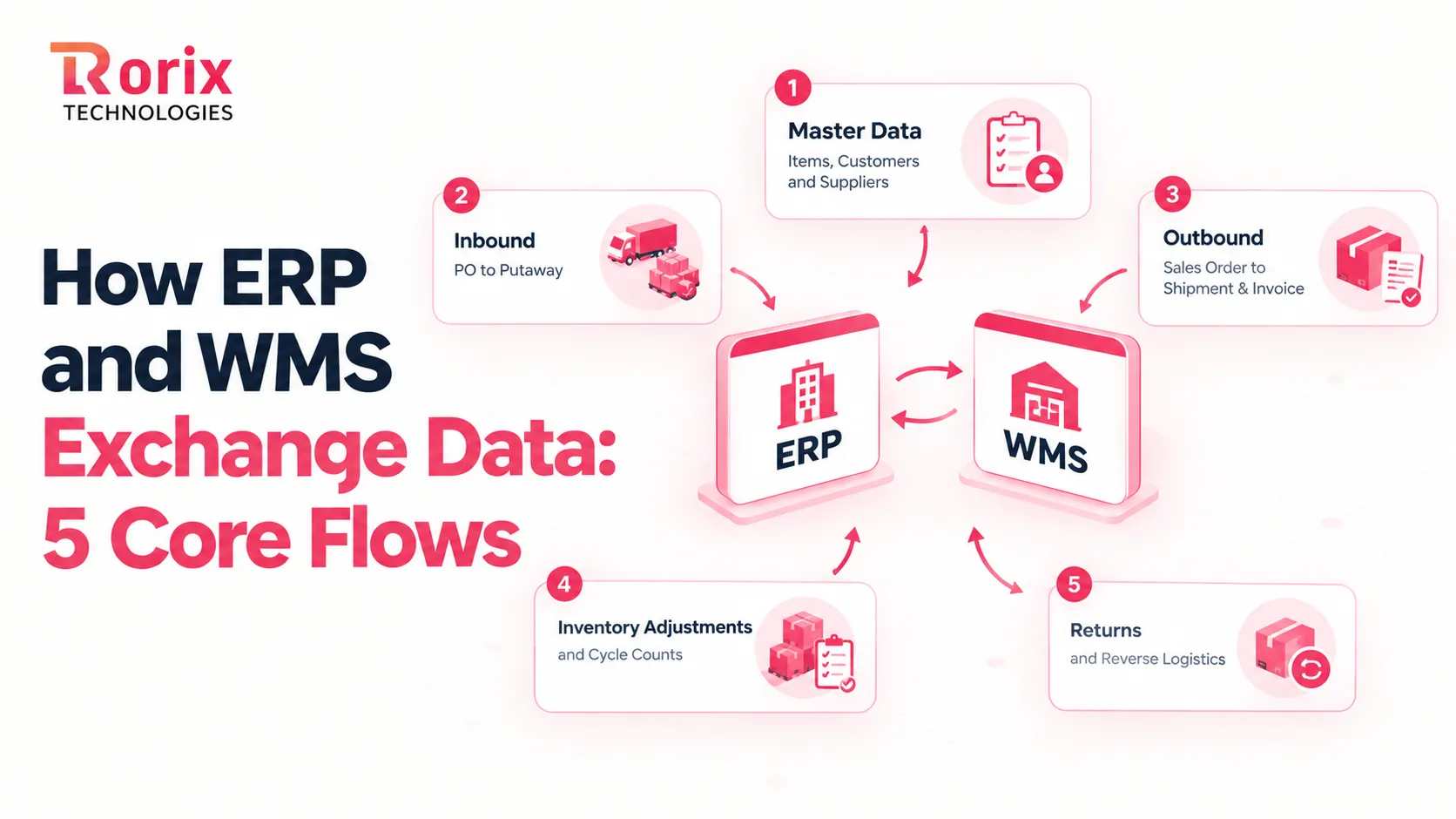
1. Master Data: Items, Customers, and Suppliers
Master data syncs first, because every order and count depends on it. The ERP sends item codes, units, dimensions, ship-to addresses, and supplier records, plus rules like FEFO rotation. If a new SKU reaches the dock before its record does, receiving stalls.
2. Inbound: Purchase Order to Putaway
The ERP releases a purchase order, and the WMS treats it as an expected receipt, often matched to the supplier's shipping notice. Receivers scan against it and capture lot and serial data. The WMS confirms actual quantities, and the ERP updates stock and payables.
3. Outbound: Sales Order to Shipment and Invoice
The ERP checks credit and pricing, then releases approved orders to the WMS for wave or batch picking with scan validation. Once the order ships, the WMS returns quantities and tracking. The ERP then closes the order and raises the invoice, completing order-to-cash.
4. Inventory Adjustments and Cycle Counts
Stock also changes through damage, shrinkage, and cycle count corrections. The WMS records each change with a reason code and sends it to the ERP, which posts the financial impact. Skip reason codes, and finance sees write-offs nobody can explain.
5. Returns and Reverse Logistics
The ERP creates a return authorization, and the WMS receives, inspects, and assigns a disposition, such as restock or scrap. The ERP then issues the credit and adjusts stock. Returns are the flow most teams forget to test, so they often break first after go-live.
The Field Ownership Map: Which System Owns Each Record
One rule prevents many integration problems: every field has one clear owner. That owner creates or changes the value, while the other system reads it. This prevents both systems from creating conflicting versions of the same fact.
Ask where the change physically happens. Stock moves in the warehouse, so the WMS owns physical on-hand quantity. Prices and financial values change through business processes, so the ERP owns them.
On-hand inventory causes the most ownership disputes, so settle it early. Let the WMS own the physical count and the ERP own its financial value. Our guide to a single source of truth for business data explains this one-writer-per-fact principle in depth.
| Record | Owner | Direction | Suggested sync |
|---|---|---|---|
| Item master, units, dimensions | ERP | ERP to WMS | On every change |
| Customer and supplier records | ERP | ERP to WMS | On every change |
| Unit cost and inventory valuation | ERP | Stays in ERP | Not synced to WMS |
| Purchase orders and expected receipts | ERP | ERP to WMS | On release |
| Sales orders | ERP | ERP to WMS | Real time on release |
| Bin locations and pallet IDs | WMS | Stays in WMS | Not synced to ERP |
| Physical on-hand quantity | WMS | WMS to ERP | Real time or every few minutes |
| Lot, serial, and expiry data | WMS | WMS to ERP | On receipt and shipment |
| Receipt and shipment confirmations | WMS | WMS to ERP | On completion |
| Adjustments with reason codes | WMS | WMS to ERP | Near real time |
Have operations and finance agree on this ownership map before configuration starts. A clear decision upfront can prevent weeks of troubleshooting when inventory values drift after go-live.
7 Methods for WMS Integration With ERP
There is no single way to connect a WMS and ERP. The right WMS integration method depends on your ERP, warehouse complexity, order volume, existing systems, and how much control you need over the connection.
Here is how the seven common options compare:
| Method | Sync speed | Upfront effort | Ongoing cost | Flexibility | Best fit |
|---|---|---|---|---|---|
| ERP-native module | Instant, shared database | Low | Included in ERP license | Limited to ERP's warehouse depth | One site, simple picking |
| Prebuilt vendor connector | Near real time or scheduled | Low | Subscription + custom field fees | High lock-in to both vendors | Standard ERP and standard flows |
| Direct API integration | Real time | Medium to high | Upkeep on API changes | Flexible but tightly coupled | Two modern systems, few flows |
| Middleware or iPaaS | Real-time or scheduled | Medium | Recurring platform subscription | Flexible, adds a third platform | Several systems to connect |
| Flat-file and EDI | Batch, minutes to hours | Low to medium | Low, needs file monitoring | Works with almost any ERP | Legacy ERPs, retail partners |
| Direct database link | Fast | Medium | High, breaks on upgrades | Fragile and unsupported | Last resort only |
| Custom integration layer | Real-time or event-driven | Higher | No license fees, owned upkeep | Full control | Custom workflows, multi-site growth |
1. ERP-Native Warehouse Module
NetSuite, Microsoft Dynamics 365, and Odoo include warehouse features that share the ERP database, so a separate integration may not be needed. The trade-off is warehouse depth. These modules can be limiting for complex picking, multi-client operations, or advanced automation.
2. Prebuilt Vendor Connectors
Prebuilt connectors offer a faster setup when your WMS and ERP workflows match the vendor's standard mappings. They can support systems such as NetSuite, QuickBooks, and Xero, but custom fields and mapping changes may add cost or require vendor support. Check your exact ERP version before choosing one.
3. Direct API Integration
Direct WMS API integration connects the two systems through REST or SOAP APIs, often in real time. It works well when both systems have modern, documented APIs and only a few data flows are required. The main trade-off is tight coupling, since an API change on either side can affect the connection.
4. Middleware and iPaaS Platforms
Middleware acts as a central layer that transforms, routes, and queues data between systems. iPaaS platforms such as Boomi, Celigo, or MuleSoft can add connectors and integration tools, making them useful when several systems need to communicate. The trade-off is another platform to manage and pay for.
When e-commerce platforms, carriers, and a TMS also connect to the warehouse, our WMS integration best practices guide covers those connections alongside the ERP.
5. Flat-File and EDI Exchange
Flat files such as CSV or XML, along with EDI, remain common with legacy ERPs and retail partners. They are relatively inexpensive and widely supported, but batch processing can leave inventory data stale. Add monitoring and alerts so failed, missing, or rejected files do not go unnoticed.
6. Direct Database Integration
Direct database integration reads or writes data between system databases without relying on an API. It can look fast and inexpensive, but it bypasses application rules and can break when a vendor changes its database schema. For that reason, treat it as a last resort for systems with no practical API.
7. Custom Integration Layer
A custom integration layer sits between the ERP and WMS to translate data, queue messages, retry failures, and log transactions. It requires more design and development upfront, but gives you full control over custom workflows. If you replace the ERP later, you can change one adapter instead of rebuilding every connection.
Also Read: Cloud vs On-Premise WMS: Complete Comparison Guide
WMS ERP Integration Architecture: 5 Design Decisions That Decide Stability
The integration method decides how systems connect. Architecture decides how that connection behaves when volume rises, data fails, or a system goes offline. These five decisions determine whether your integration runs quietly or needs constant troubleshooting.
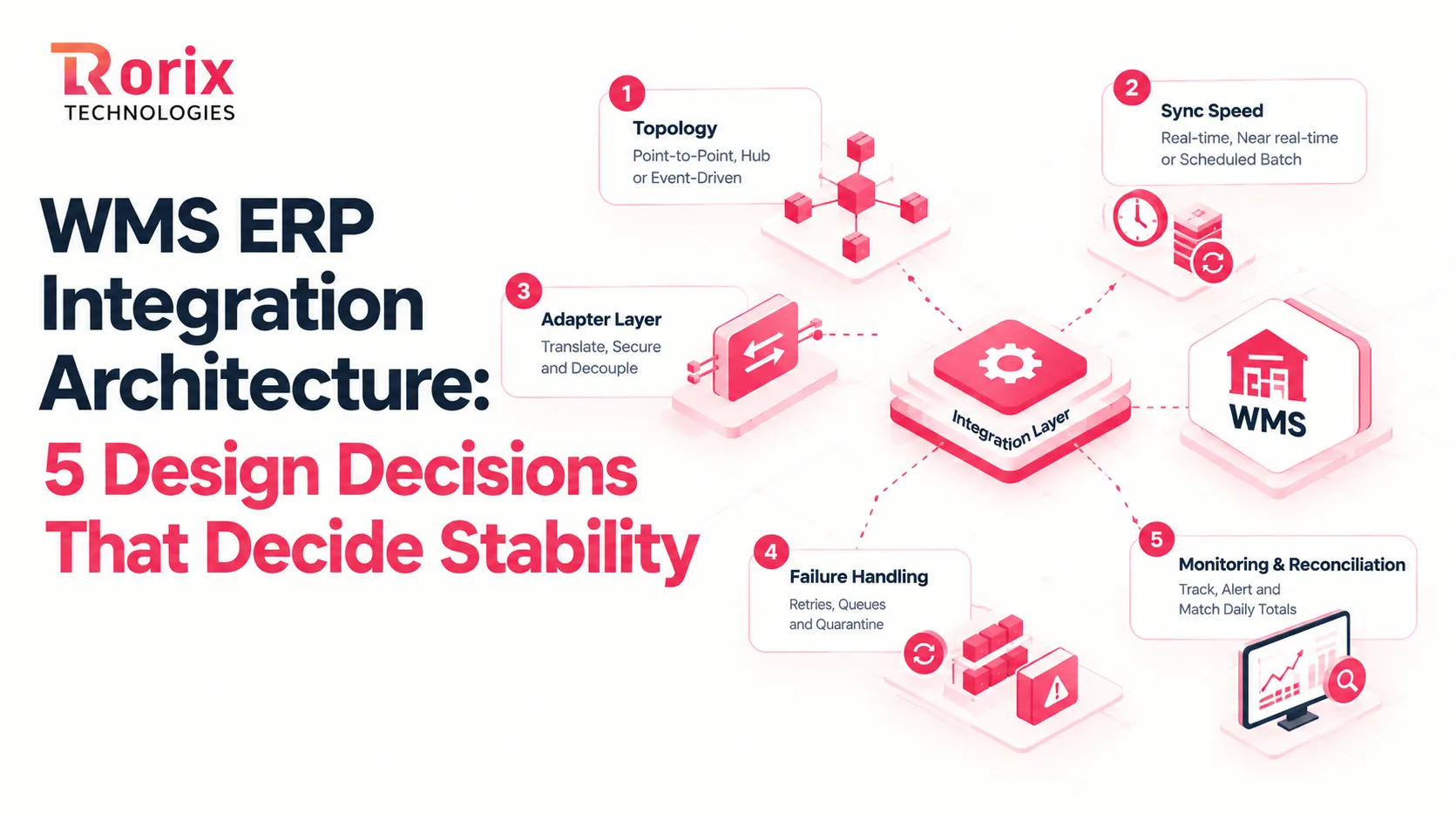
1. Choose the Topology: Point-to-Point, Hub, or Event-Driven
Point-to-point works well for two systems, while a hub such as middleware or a custom integration layer makes growth easier to manage. Event-driven architecture publishes events such as OrderShipped for other systems to consume. Our API integration strategy guide compares these topologies in depth.
2. Match Sync Speed to Each Process
Not every process needs real-time synchronization. Match the speed to the business need and send only the data that changed. Our real-time inventory architecture guide explains how event-driven updates can keep live inventory counts accurate.
| Sync mode | Best for | Why it fits |
|---|---|---|
| Real-time, event-driven | Order releases, shipment confirmations, sellable stock for channels | Delays can cause oversells and late invoices |
| Near real-time, every few minutes | Adjustments, cycle counts, receipt confirmations | Keeps data fresh without flooding the ERP |
| Scheduled batch | Price lists, supplier updates, reporting, financial summaries | Changes are less frequent and rarely need instant updates |
3. Put an Adapter Layer Between the Two Systems
Avoid connecting the WMS directly to ERP database tables. An adapter layer can translate data into a neutral format while handling authentication and encryption. If the ERP changes later, you update the adapter instead of rebuilding the warehouse connection.
4. Design for Failure With Retries, Queues, and Quarantine
Networks fail, and ERPs go offline, so a durable queue should hold messages and retry them automatically. Give each message a unique key to prevent duplicate orders during retries. Records that fail validation, such as a zero price, should move to a quarantine queue for review.
Our engineering guide to REST vs message queue patterns for WMS to ERP integration shows how queues and idempotency keys work in practice.
5. Build In Monitoring and Daily Reconciliation
Log every transaction with a traceable ID and alert the right person when the error queue grows. Then reconcile ERP and WMS totals by SKU and location each day. A small variance report is easier to fix than a major inventory discrepancy at quarter-end.
Also Read: Warehouse Management System for Food Industry: Complete Guide
WMS ERP Integration Best Practices: 8-Step Implementation Roadmap
A successful WMS integration with ERP starts before development. Set the goals, assign ownership, map the data, test real warehouse scenarios, and plan the cutover in that order. For the wider rollout, pair this roadmap with our WMS implementation checklist.
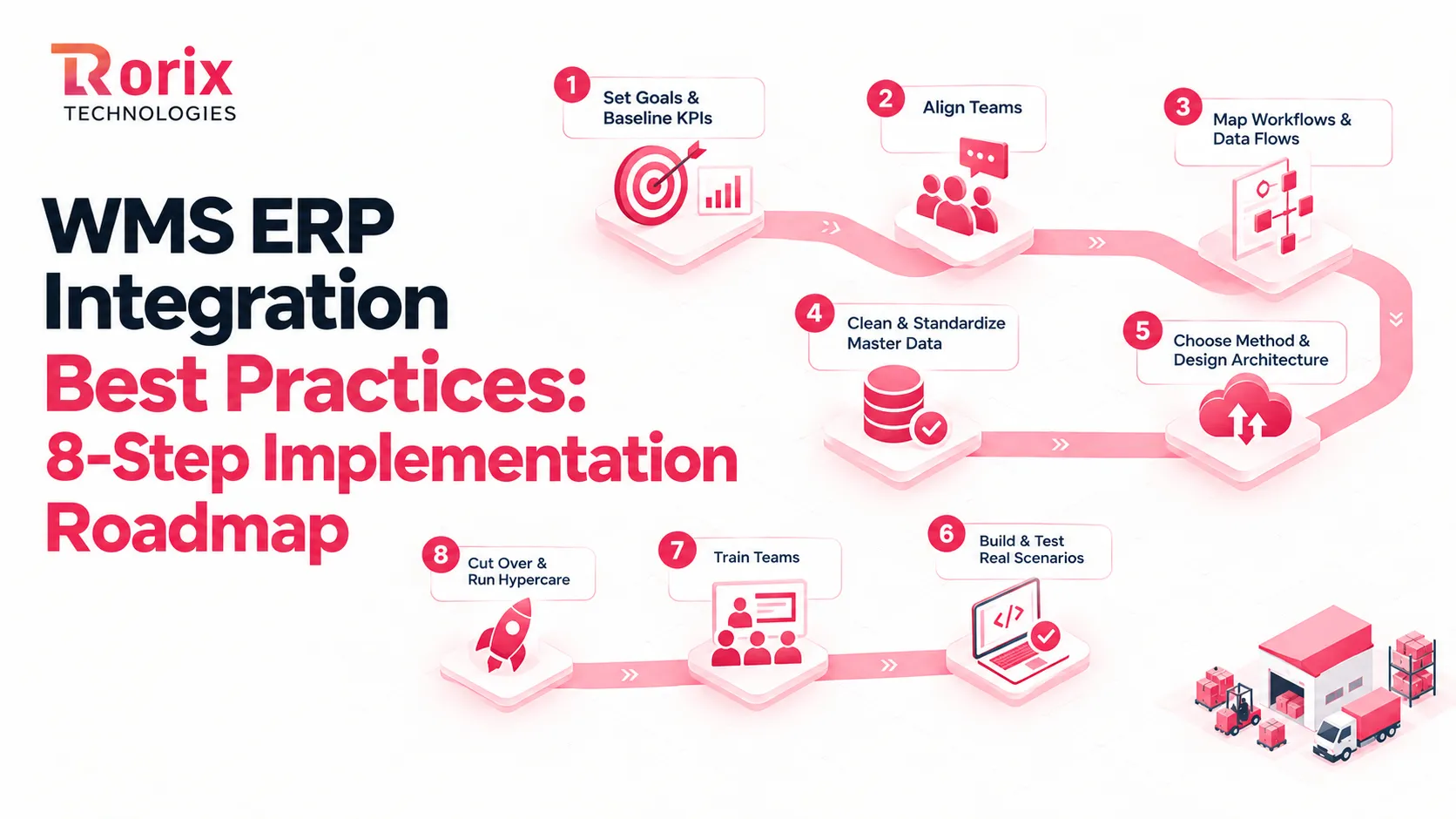
Step 1: Set Goals and Baseline KPIs
Start with the problems the integration must solve, such as stopping order re-entry or reducing oversells. Then measure current inventory accuracy, order cycle time, and reconciliation hours so you can prove whether the project improved them.
Define the first-phase scope early. Fix the flows causing the most operational pain first and leave lower-priority features for later phases.
Step 2: Bring Operations, Finance, and IT to One Table
Integration changes daily work across the warehouse, finance, and customer service, so involve each team before design begins. The warehouse explains floor operations, finance defines valuation and revenue rules, and IT owns security and technical design.
Give one person authority to settle disputes, such as which system owns physical inventory. Without clear decision-making, small ownership questions can delay the project.
Step 3: Map Workflows, Data Flows, and Exceptions
Document receiving, putaway, picking, packing, shipping, and returns from the floor up. For each flow, define the direction, fields, trigger, frequency, and owner so your ERP WMS data mapping becomes the integration specification.
Then document exceptions such as partial receipts, short picks, split shipments, and canceled orders with existing labels. These scenarios should become test cases later.
Step 4: Clean and Standardize Master Data
Integration does not fix bad data. Remove duplicate SKUs, retire obsolete items, standardize units and conversions, and make sure location codes, dimensions, and weights are consistent before data moves automatically.
Run a physical count before cutover so the WMS starts from actual inventory. Validate quantity, location, lot, expiry, and status instead of assuming the existing records are correct.
Step 5: Choose the Method and Design the Architecture
Select the integration method based on your systems, workflows, volume, and growth plans. Then document which flows run in real time, which run on a schedule, and where messages are queued.
Design the failure path alongside the normal flow. Decide what happens during an ERP outage, who receives alerts, how failed messages are replayed, and how the warehouse continues receiving and shipping during downtime.
Step 6: Build and Test Against Real Scenarios
Build the integration in a production-like sandbox and test each flow before combining them. Start with unit tests, then run end-to-end scenarios from ERP order entry through picking, shipping, invoicing, and inventory updates.
Test at peak volume, not average volume. If normal volume is 800 orders and peak volume reaches 3,000, test against 3,000 and replay every exception identified during workflow mapping.
Step 7: Train Teams on Real Workflows
Train each role using real workflows, SKUs, and warehouse locations rather than a generic demo. Receivers, pickers, supervisors, and finance users need training that matches the work they actually perform.
Spend extra time on exceptions. Show supervisors how to read the error queue, handle failed syncs, and escalate problems before manual workarounds create inventory drift.
Step 8: Cut Over in Phases and Run Hypercare
Choose the cutover strategy based on operational risk. Big-bang works for smaller, stable operations, while phased or parallel approaches provide more control for multi-site and high-volume environments.
| Strategy | How it works | Risk level | Best for |
|---|---|---|---|
| Big bang | Old process stops, and the new one starts the same day | Highest | Small, stable sites with low volume |
| Phased rollout | Start with one site, zone, or flow, then expand | Low to medium | Multi-site operations and 3PLs |
| Parallel run | Both processes run for 1-4 weeks while results are compared | Lowest, but resource-heavy | High-volume or critical operations |
Schedule go-live during a lower-volume period and freeze non-urgent stock moves 24-48 hours before cutover. Keep a written rollback plan, then run hypercare with daily reviews and frequent error checks during the first two weeks.
If you're replacing an older system at the same time, our legacy WMS migration guide covers zero-downtime cutover in detail.
Now that the roadmap is clear, the next step is understanding the pitfalls that can derail it.
10 Common ERP WMS Integration Pitfalls and How to Avoid Them
Most failed projects fail for familiar reasons. Here are the ten that show up most often when WMS integration with ERP goes wrong, along with the fix for each one.
1. Running It as an IT-Only Project
When IT designs the flows alone, the warehouse sees them first during testing, and they rarely match how the floor works. You then pay for emergency rework. Involve the warehouse manager and finance from the first scoping meeting, and let real processes shape the rules.
2. Migrating Dirty Master Data
Duplicate SKUs, mismatched units, and ghost locations do not disappear during migration. They move into a system that now acts on them automatically. Audit and clean the item master, locations, and open orders first, then reconcile counts before you switch anything on.
3. Leaving Field Ownership Undecided
If both systems can edit on-hand quantity or prices, the last writer wins by accident. The result is inventory drift that nobody can reproduce weeks later. Write the ownership map with one owner per field, and lock edits in the system that does not own it.
4. Mapping Fields Without Unit and Format Rules
One system stores cases while the other stores each, or one uses kilograms while the other uses pounds. Small mismatches like these create huge quantity errors. Document every field's format, unit, and conversion rule, then test those conversions with real items before go-live.
5. Syncing Everything at One Speed
Nightly batch syncs leave sales working from stale stock all day, while forcing everything into real time overloads the ERP. Match speed to the process instead. Use real time for orders, shipments, and sellable stock, near real time for adjustments and counts, and schedules for slow-moving reference data.
6. Hard-Wiring Directly Into the ERP Database
Direct database links feel quick, then break with the first ERP update or schema change. They also skip the validation rules that protect your data. Connect through supported APIs or an adapter layer, so an upgrade on either side never stops the warehouse.
7. Ignoring Exceptions and Failed Messages
The happy path always works in the demo. Real trouble starts with partial receipts, short picks, cancellations after labeling, and messages that fail silently. Build a visible error queue with alerts, retries, and replay, and give each failure type a named owner.
8. Testing Only the Happy Path at Average Volume
An integration that handles 50 test orders can choke on 3,000 during peak week. Test edge cases, recovery after an outage, and peak volume in a staging environment that mirrors production. You want load problems to surface in testing, not in front of customers.
9. Going Live in One Big Bang
Switching every flow, site, and user on the same night leaves you with no safety net and no clear root cause when something breaks. Phase the rollout by site, zone, or flow, or run both processes in parallel. Keep a tested rollback plan either way.
10. Treating Go-Live as the Finish Line
Integrations degrade when nobody owns them after launch, because vendors release updates and new hires never learn the exceptions. Assign a system owner, review the error queue monthly, test updates in a sandbox, and refresh training before peak season.
How Much Does WMS Integration With ERP Cost and How Long Does It Take?
WMS integration with ERP costs vary widely. A simple connector can take weeks, while a multi-site project with custom workflows can take months. The ranges below are market estimates, not Rorix pricing.
1. Cost and Timeline by Integration Scope
| Integration scope | Typical setup | Market cost range | Typical timeline |
|---|---|---|---|
| Connector level | One ERP or accounting tool, prebuilt connector, standard flows | Often bundled in a subscription or under $5,000 in setup | 2-4 weeks |
| Mid-market integration | Mid-market ERP, API or middleware, custom mappings, one or two sites | $5,000-$50,000 | 2-6 months |
| Complex or multi-site | Multiple sites or clients, custom or legacy ERP, automation, heavy exceptions | $50,000-$250,000+ | 6-12 months or longer |
Most projects fall somewhere between these ranges, with master data quality, system complexity, and custom workflows often having the biggest impact. For software, hardware, and rollout costs beyond the integration, see our breakdown of how much a warehouse management system costs.
2. What Pushes the Budget Up
- More systems and data flows: Adding eCommerce, TMS, carriers, or other platforms increases mapping, testing, and monitoring work.
- Legacy ERP or weak APIs: Older or heavily customized ERPs may require file-based methods or a custom integration layer.
- Custom workflows: Kitting, catch weight, multi-client billing, and approval rules require additional mapping and testing.
- Data cleanup: Duplicate SKUs, inconsistent units, and incorrect records can add significant preparation time.
- Multi-site or multi-client scope: Each site or 3PL client adds configuration, data rules, and cutover planning.
- Testing and parallel runs: Peak-load testing, recovery testing, and parallel operations add time but reduce go-live risk.
- Ongoing costs: iPaaS subscriptions, connector fees, API maintenance, and future change requests continue after launch.
Why Rorix for WMS and ERP Integration Projects
Rorix Technologies builds custom software for operations-heavy businesses, with warehouse management as our deepest specialization. We have delivered 27 projects across the US, UK, Canada, Australia, and New Zealand, and hold a 5.0 Clutch rating from 4 verified reviews.
For WMS integration with ERP, we treat the integration layer as part of the product, never as an afterthought bolted on at the end. Here is what that looks like in practice:
- Engineered for your domain: We build the WMS and its ERP connection around your real receiving, picking, and exception workflows instead of a vendor template.
- Proven operational results: WorkCenter Central, the platform we built for distributor Lorecs, cut manual errors by 80% and sped up order processing by 50%. Read the distributor platform case study.
- Ownership map first: We agree and document field ownership, sync speeds, and failure handling before development starts.
- A team that works like your own: A dedicated team of senior engineers with a named technical lead works on retainer in 2-week sprints. You get full visibility into every task.
- Accountable past go-live: We stay with you through hypercare, ERP updates, and new sites, so the integration keeps matching how you work.
Planning to connect your WMS and ERP, or fixing a connection that keeps drifting? Book a free consultation and get a mapped integration path for the systems you already run.
Build the Connection Around Your Warehouse
A reliable WMS integration with ERP starts with the right decisions. Choose the integration method for your systems and volume, define who owns each field, and set the right sync speed for every process.
The goal is simple: keep inventory, orders, shipments, and financial records aligned without creating extra manual work. Plan for exceptions and failures before development so your warehouse is ready when something goes wrong.
We hope this guide helps you understand how WMS integration with ERP works, which methods fit different operations, and the common issues to address before go-live.
Ready to turn your integration plan into a working system? Connect with our experts to scope your WMS, ERP, workflows, and next steps.
Frequently Asked Questions
What is WMS integration with ERP?
It is the two-way exchange of data between a WMS and ERP. The ERP sends orders and item data, while the WMS returns receipts, shipments, and inventory updates.
Do I need a separate WMS if my ERP has a warehouse module?
Not always. A native module may work for one site and simple workflows, while a dedicated WMS is more useful for multiple sites, advanced picking, automation, or complex warehouse operations.
Which system should own inventory data?
The WMS should own physical stock, locations, and lot data. The ERP should own costs, valuation, and financial records. Defining ownership by field prevents conflicting updates.
Does inventory need real-time synchronization?
Not every data flow does. Orders, shipments, and sellable inventory may need real-time or near real-time updates, while reference data can usually sync on a schedule.
When should I use middleware instead of direct APIs?
Direct APIs can work well between two modern systems with limited flows. Middleware or a custom integration layer becomes more useful when multiple systems, such as eCommerce, TMS, and carriers, need to connect.
How long does WMS integration with ERP take?
A simple connector can take 2-4 weeks. Mid-market projects may take 2-6 months, while complex multi-site integrations can take 6-12 months or longer.
Can a custom WMS integrate with SAP, NetSuite, or Microsoft Dynamics?
Yes. A custom WMS can connect through APIs, middleware, or an adapter layer. The actual effort depends on the ERP version, available interfaces, customizations, and required data flows.
How can I reduce risk during the cutover?
Use a phased rollout or parallel run for complex operations, reconcile inventory before switching, and keep a tested rollback plan. Schedule the cutover during a lower-volume period whenever possible.
Building this into a live warehouse system?
Bring the constraint you keep hitting and a named engineer will walk the design with you.
Continue learning
Written by
Renish DadhaniyaFounder & Director, Rorix Technologies
Renish co-founded Rorix Technologies and drives the engineering and delivery culture across the organization. Beyond engineering, he leads the company's sales, finance, and HR operations, building the infrastructure that lets the team focus on shipping quality software. With deep hands-on expertise in architecture and team building, he ensures every project lands on time to the quality standards clients demand.
View full profileRelated articles
WMS Integration Best Practices: ERP, E-Commerce and TMS
WMS integration best practices for connecting ERP, e-commerce, shipping carriers, and TMS: proven patterns, sync strategies, and common failure points.
Read article
Barcode and RFID Integration Patterns in React
A practical guide to integrating barcode scanners and RFID readers with a React warehouse app: the four real connection patterns and when to use each.
Read article
PostgreSQL vs MongoDB for Warehouse Management: A 2026 Comparison from Engineers Who've Used Both
An honest, project-grounded comparison of PostgreSQL and MongoDB for warehouse management systems, from a team that runs both in production.
Read article